






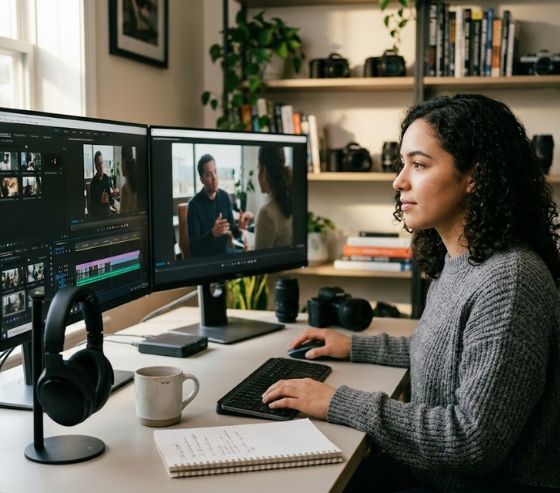
High-performing video content relies on clear visual cues, perfect audio synchronization, and eye-catching aesthetics to retain viewer attention. Masterful subtitle styling, burn-in, and caption timing transforms passive scrollers into active viewers by ensuring on-screen text is easy to read, perfectly aligned with spoken audio, and visually integrated within social media safe zones. When executed correctly, timed text boosts overall watch time, audience comprehension, and video accessibility across every major digital platform.
Over 85 percent of social media videos are watched without sound in public spaces or quiet environments. When spoken dialogue is not rendered into clear visual text, viewers scroll past within seconds. Content creators who invest time into polishing their visual text pipeline see immediate improvements in audience retention, higher completion rates, and stronger engagement metrics.
Building a modern video pipeline requires understanding how text elements interact with the underlying video track. Creators who utilize an automated video creation platform can generate precise transcriptions and customize visual overlays automatically, saving hours of manual editing while maintaining professional broadcast standards across every release.
Understanding Subtitle Styling for Maximum Readability
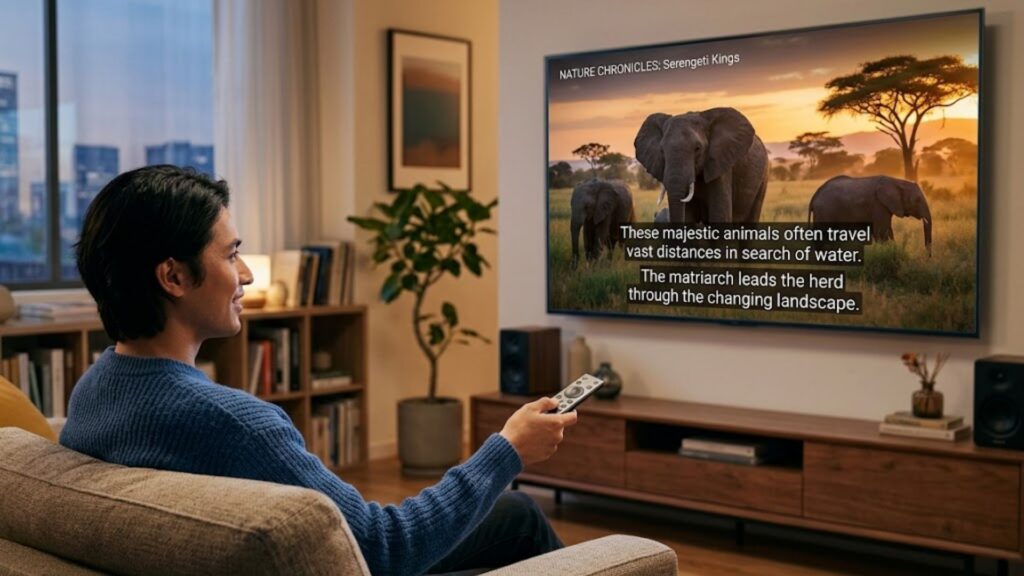
Visual text should complement your video without distracting from the primary subject. Effective presentation rests on typography choices, line length, visual contrast, and spatial placement. The golden rule of visual text is simple: if a viewer notices the text design before understanding the message, the formatting needs adjustment.
Typography and Font Selection
Sans-serif fonts are the industry standard for digital video screens because their clean lines remain crisp across varying mobile resolutions. Fonts such as Arial, Montserrat, Inter, Roboto, and Futura offer exceptional legibility at small scale. Decorative, script, or highly stylized serif fonts should be avoided for multi-line dialogue, as their intricate details blur on low-resolution displays.
Font weight also impacts viewer comprehension. Medium, Semi-Bold, or Bold weights ensure letters remain solid against busy, moving backgrounds. When setting font size, aim for text that occupies approximately 3 to 5 percent of the total screen height on standard horizontal media, and up to 6 percent on vertical smartphone screens.
Line Length and Spatial Boundaries
Restricting sentence length keeps viewers focused on the speaker’s facial expressions and visual cues. Broadcast standards set by the BBC and streaming platforms recommend a maximum of 37 to 42 characters per line, including spaces and punctuation. Displaying more than two lines of text simultaneously clutter the frame and overwhelm the eye.
Safe zones must be respected during layout design. For standard 16:9 widescreen formats, keep text within the central 80 percent of the picture frame. On vertical 9:16 formats like TikTok and Instagram Reels, keep captions clear of top profile headers, bottom comment overlays, and right-side engagement buttons.
Contrast, Strokes, and Background Bounding Boxes
High visual contrast separates text characters from the video footage behind them. White text with a thin black outline or drop shadow is the classic standard because it remains visible over both light and dark video backgrounds. Yellow text is another popular option that draws immediate visual focus without fatiguing the eye.
When producing fast-paced content, using AI script generation software helps draft concise spoken hooks that translate into clean, easy-to-read text blocks on screen.
Using solid or semi-transparent background boxes behind text guarantees maximum readability regardless of background footage. A black box set to 50 to 75 percent opacity offers strong contrast without completely hiding the visual details underneath.
Burned In Captions vs Closed Captions: Choosing the Right Format
Choosing between open subtitles and closed captions depends directly on where your video is distributed and how your audience consumes content. Both methods display text over moving footage, but they function in fundamentally different ways behind the scenes.
| Feature / Metric | Burned-In (Open) Captions | Closed Captions (CC) | Dynamic Animated Captions |
| File Structure | Baked directly into video frame | Separate sidecar file (.srt, .vtt) | Baked into video frame |
| Viewer Control | Cannot be turned off | Toggleable on/off by user | Cannot be turned off |
| Styling Control | 100% fixed designer control | Dependent on media player | Custom animations & colors |
| Platform Compatibility | Plays universally on any device | Requires platform player support | Ideal for vertical short-form feed |
| Search Indexing | Not directly machine-readable | Search engines index text file | Requires video metadata |
| Primary Use Case | TikTok, Reels, Shorts, Ads | YouTube, Netflix, Web Accessibility | Social media marketing hooks |
Evaluating burned in captions vs closed captions reveals distinct technical advantages for different distribution channels.
What Are Burned-In Captions?
Burned-in captions, often referred to as open captions or hardcoded text, are rendered directly into the pixels of the video file during export. Once the video file is rendered, the text becomes an unalterable part of the visual image, exactly like a channel watermark or visual effect.
The main advantage of burned-in captions is absolute visual control. The exact font, color gradient, stroke width, position, and animation style you design in your editor will display identically on every phone, computer, or television screen. Furthermore, open text works on platforms that lack native caption support.
What Are Closed Captions?
Closed captions exist as separate text data, stored either as a sidecar file like an SRT or VTT document, or embedded within a dedicated metadata track in the container file. Viewers can freely toggle closed captions on or off using the CC icon on media players like YouTube, Vimeo, or web browsers.
Closed captions allow viewers to customize font size, color, and background to meet individual visual accessibility needs. They also enable multi-language support, allowing a single video stream to serve global audiences with separate localized subtitle files.
When creating specialized marketing content, combining faceless video generation tools with embedded text workflows allows creators to automate video output at scale without losing visual precision.
Why Subtitle Styling, Burn-In, and Caption Timing Matter for Video Success
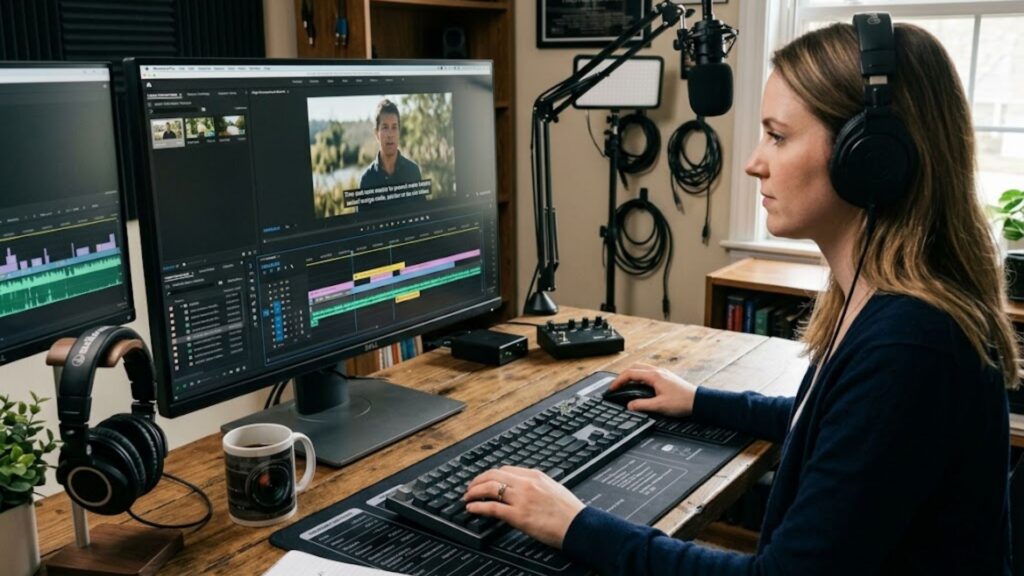
Effective subtitle styling, burn-in, and caption timing prevents visual clutter and ensures viewers absorb information without cognitive overload. When on-screen text syncs smoothly with spoken words, audiences process information effortlessly, resulting in higher video completion rates.
Precision Timing and Frame Synchronization
Subtitles must enter the screen the exact moment the speaker utters the first phoneme. In point of fact, caption timing should align within 1 to 2 frames of the audio waveform start. If text appears too early, it spoils upcoming dialogue; if it appears too late, viewers experience uncomfortable visual friction.
Subtitle out-times are equally important. When dialogue stops, text should remain visible for roughly half a second (12 to 15 frames in 30fps video) rather than disappearing instantaneously. This brief extension gives the human brain sufficient time to finish reading the phrase comfortably.
Reading Speed, CPS, and WPM Constraints
Subtitle presentation must match comfortable reading speeds. Standard viewer reading speeds fall between 160 and 180 words per minute (WPM), which translates roughly to 15 to 17 characters per second (CPS). Pushing text display rates beyond 20 CPS forces viewers to skim, lowering content retention.
- Minimum Cue Duration: No text block should stay on screen for less than 20 frames (approx. 0.8 seconds), even for single-word exclamations.
- Maximum Cue Duration: A single subtitle line should not linger past 7 seconds to avoid looking static or broken.
- Gap Closing (Chaining): Gaps between consecutive text blocks shorter than two-fifths of a second should be closed to a clean 2-frame transition to prevent annoying text flickering.
Handling Scene Transitions and Shot Changes
When a video cuts to a new camera angle or scene, subtitle timing must respect the visual edit. Subtitles that span across a shot change by only a few frames cause an uncomfortable visual artifact known as a lingering frame.
If dialogue begins within half a second after a shot change, bring the subtitle in-time forward to match the first frame of the new shot. Conversely, if dialogue ends within half a second before a scene edit, extend the subtitle out-time to terminate right at the cut boundary.
Businesses utilizing tailored video solutions across industries rely on these broadcast standards to ensure corporate messaging, product demos, and social media promos look pristine on every channel.
Platform-Specific Strategies for Short-Form Video
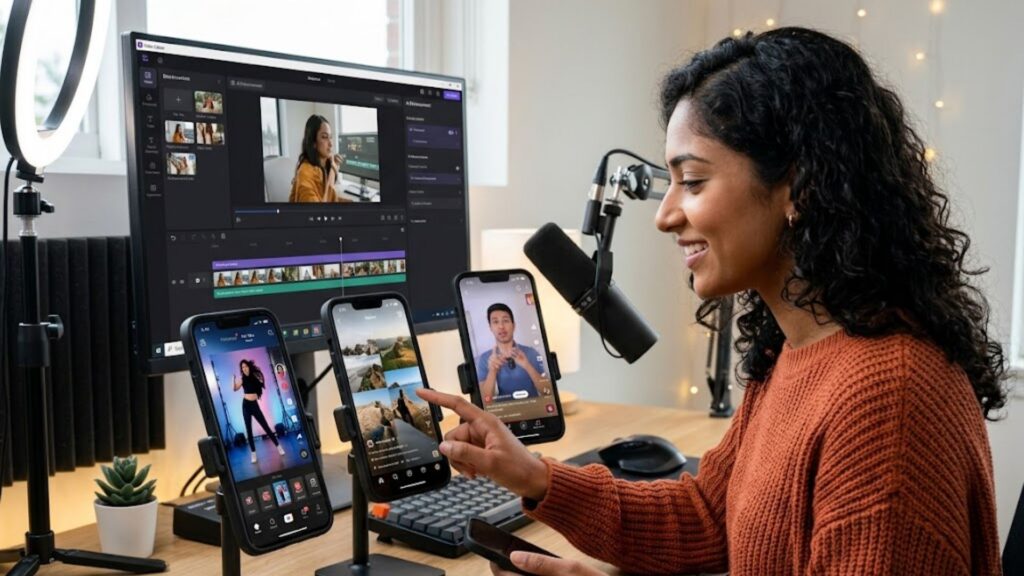
Short-form platforms like TikTok, Instagram Reels, and YouTube Shorts require an energetic approach to text presentation compared to traditional long-form video. The goal on fast-moving feeds is grabbing attention immediately within the first three seconds.
Animated Caption Styles on TikTok and Reels
Modern social creators frequently use animated caption styles TikTok audiences respond to, such as word-by-word highlighting, pop-in text transitions, and color-shifting emphasis. Highlighting words in real-time as they are spoken creates a visual rhythm that holds eyes on the screen.
Using an auto subtitle generator for reels streamlines this process by converting spoken audio into dynamic, timed captions with custom color highlights automatically. Syllaby AI provides built-in tools that handle transcription, line splitting, and kinetic styling in a single automated step.
Optimizing Safe Zones for Vertical Media
Vertical video displays hide large portions of the screen behind native platform user interface controls. Placing text too low covers it with video captions, sound titles, and comment buttons. Placing text too high obscures it beneath top search bars and user profile headers.
- Keep all critical visual text centered horizontally in the frame.
- Position captions between 30 percent and 70 percent from the top of the 9:16 vertical frame.
- Limit text blocks to 1 to 3 bold words per frame for fast-paced viral videos to maximize readability on small screens.
Developers and agency teams managing high-volume video production can implement developer API integration to seamlessly incorporate auto-captioning and rendering directly into their software pipelines.
Step-by-Step Subtitle Production Workflow
Creating flawless video text involves a structured process from raw audio to final export. Following these standardized steps ensures consistently high quality across all releases.
- Audio Transcription: Generate an accurate text transcript of spoken dialogue using speech-recognition models or manual transcribing.
- Text Segmentation: Break the continuous transcript into logical, readable units adhering to line-length limits (under 42 characters).
- Timecode Alignment: Set precise in-times and out-times for every text block using visual audio waveforms as a baseline reference.
- Style Application: Select appropriate font, sizing, weight, stroke, and background box attributes that match your brand identity.
- Quality Review: Preview playback at normal speed to verify reading pace, visual safe zones, and shot change alignment.
- Export & Distribution: Choose hardcoded burn-in for social feeds or sidecar SRT/VTT files for dedicated video host platforms.
Teams planning to scale their content efforts can review flexible pricing plans to select workflow capabilities tailored to their output volume.
Frequently Asked Questions
What is the main difference between open captions and closed captions?
Open captions are burned directly into the video file picture during export and cannot be turned off by viewers. Closed captions exist as separate text data tracks or sidecar files that viewers can toggle on or off within supported media players.
How many characters should be displayed in a single subtitle line?
Professional subtitling guidelines recommend a maximum of 37 to 42 characters per line, including spaces and punctuation. Keeping text within two lines per frame ensures viewer focus remains centered on video content.
Why do burned-in subtitles appear blurry after uploading to social media?
Blurry hardcoded captions occur when platforms compress uploaded video files. To avoid compression artifacts, render videos in high bitrates at 1080p or 4K resolution, use bold sans-serif fonts, and maintain strong background color contrast.
What is the ideal reading speed for video captions?
Standard caption reading speed ranges between 140 and 180 words per minute (approx. 15 to 17 characters per second). Keeping text display speeds within this threshold allows audiences to absorb spoken information without missing visual action.
How do I prevent captions from overlapping with social media UI buttons?
Design captions within vertical safe zones, placing text between 30 percent and 70 percent from the top of the 9:16 screen frame. This keeps text clear of native overlays such as TikTok usernames, audio links, and right-side engagement buttons.
Conclusion
Mastering subtitle styling, burn-in, and caption timing is essential for any content creator, business, or marketing team looking to maximize viewer engagement. By selecting clean sans-serif typography, adhering to character limits, maintaining strong background contrast, and aligning text precisely with spoken audio, you transform casual feed scrollers into dedicated viewers.
Modern software automation simplifies complex caption editing workflows significantly. Platforms like Syllaby AI enable video creators to transcribe, style, time, and burn captions into professional video content effortlessly. Whether publishing quick short-form clips or complete educational video series, implementing proper caption practices ensures your visual message reaches every viewer clearly. If you have custom video workflow requirements or need direct assistance, consider reaching out to support teams to optimize your content creation process.